Payments
What the school and clubs are owed, by when, and what has been paid. Bobbie tracks it and reminds you; it never takes money itself.
Updated 28 September 20261 min read
The short version. Menu, Payments. Everything owed, soonest first, with the amount, who it is to and the child. Open one and press Paid when it is done. Overdue things show first and in the round-up.
Reading the page
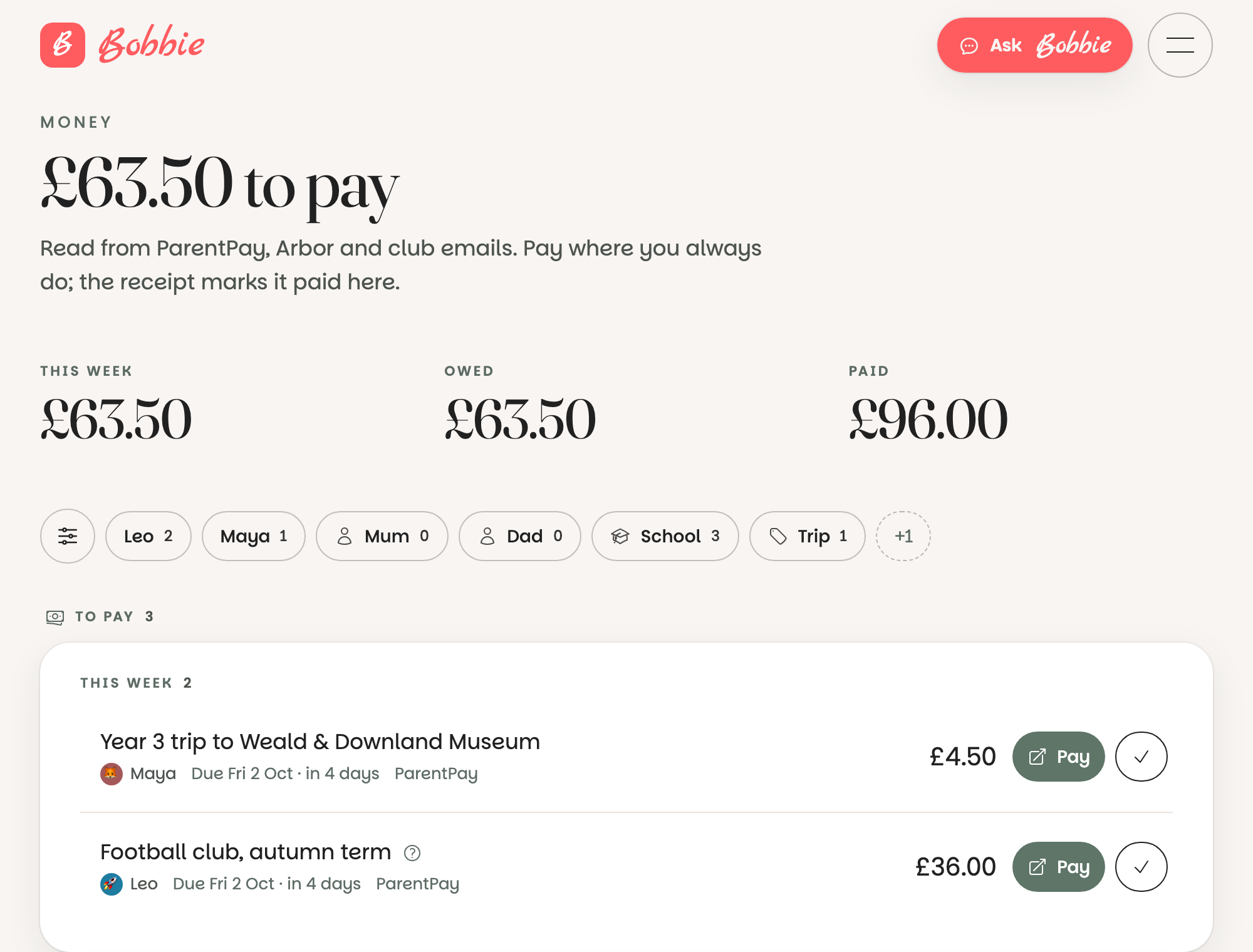
At the top, the total still owed. Then each payment: the amount, what it is for, who to pay (ParentPay, the school office, the club), the child, and when. Overdue payments come first and are marked.
Paying and ticking off
Pay it wherever you always do. Then either open the item and press Paid, or tell Bobbie: "I've paid Leo's football". It moves to the paid list with the date, and the total comes down.
Receipts and balances
When ParentPay emails a receipt to your Bobbie address, Bobbie matches it to the payment and marks it paid for you. Dinner money balances arrive the same way and become a top-up reminder when they run low.
What is really happening
A payment is an item like any other, with an amount, a payee and a due date. Bobbie reads them from letters and receipts, and tells you what is owed in Today, the calendar and the round-up. It holds no card details and connects to no payment system; the only thing it changes is the tick.
Questions people ask
- Does Bobbie pay ParentPay for me?
- No, and it never will. Bobbie has no card and no login to any payment system. It tells you what is due and where; you pay it the way you always have, then tick it off.
- How do I mark something paid?
- Open it and press Paid, or tell Bobbie: 'I've paid the trip money'. It moves to the paid list and stops being counted.
- Why is a payment in the Inbox rather than here?
- It has not been confirmed yet. Payments Bobbie reads from a letter wait in the Inbox like everything else; once you press Looks right they appear here.