Forwarding school email from Gmail
Set up one Gmail rule so every email from the school reaches Bobbie too, including the confirmation code Gmail asks for. Ten minutes on a computer, then nothing to do again.
Updated 28 September 20263 min read
The short version. Add your Bobbie address as a forwarding address in Gmail on a computer, type in the code that appears on your Integrations page, then make one filter: from the school's domain, forward to Bobbie. Done.
"I set the Gmail rule up on a Sunday night with a cup of tea. Since then I've not had to think about it once." Priya, Leeds, children in Year 3 and Year 5
Before you start
You need a computer, or a tablet in desktop mode. Google only lets you set up forwarding in Gmail on the web, not in the phone app. Once it is done, it works for every device.
Have AskBobbie open in another tab, on the Integrations page under Settings. That is where your Bobbie address is, and where the confirmation code will appear.
Step 1: add Bobbie as a forwarding address
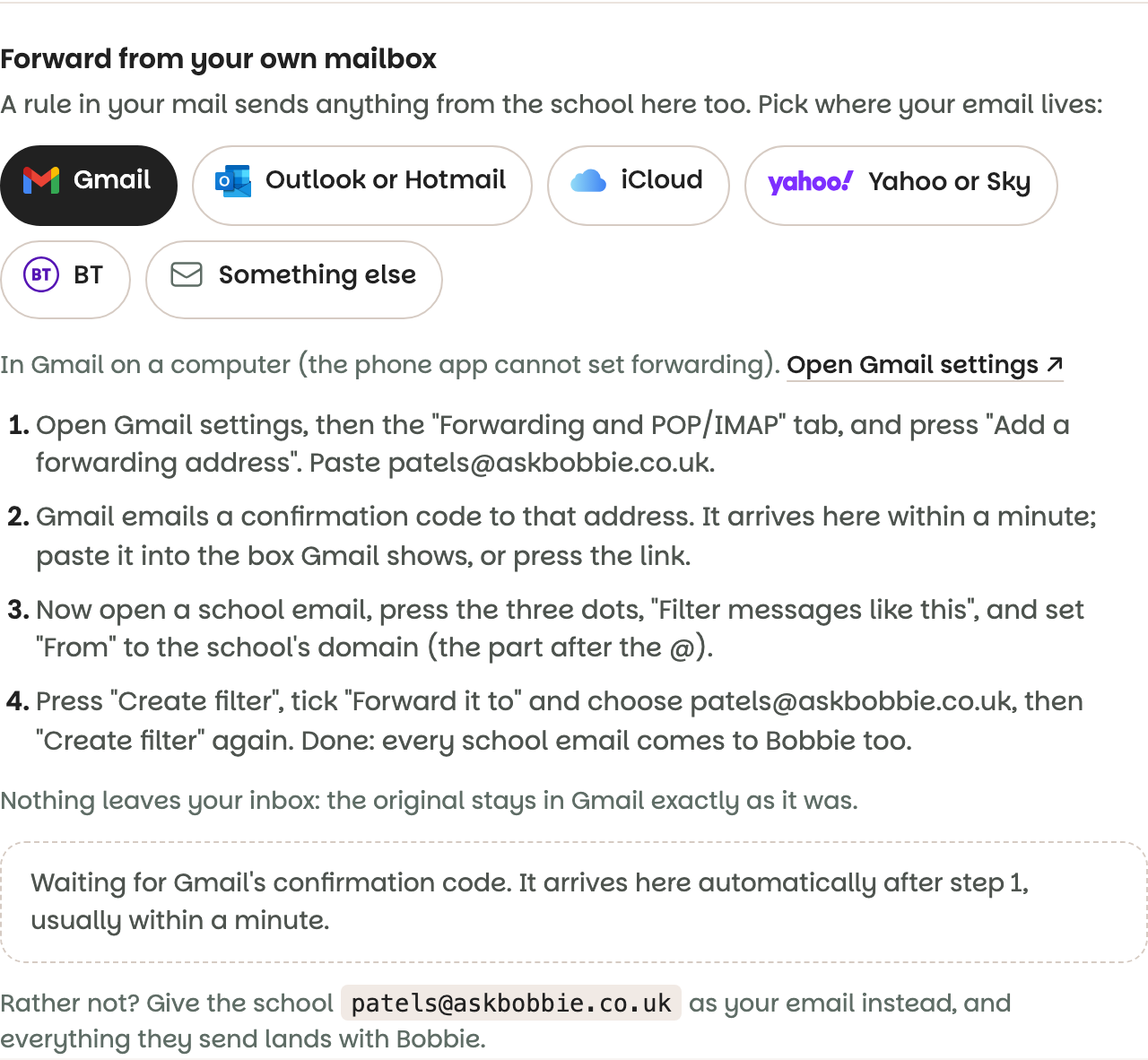
- In Gmail on a computer, press the cog at the top right, then See all settings.
- Open the Forwarding and POP/IMAP tab.
- Press Add a forwarding address, paste your Bobbie address, and press Next, then Proceed, then OK.
Gmail now sends a confirmation email to that address. You do not need to find it: Bobbie has.
Step 2: type in the code
Go back to the AskBobbie tab. Within a minute, the Gmail box on the Integrations page changes from "waiting for Gmail's confirmation code" to showing a number, with a one-tap link beside it.
Either press the link, or copy the number into the box Gmail is showing you and press Verify. Gmail now trusts the address.
If the code does not appear after two minutes, check that you pasted the address exactly, including the part after the @, and press "Add a forwarding address" again. Codes stay on the page for two days.
Step 3: forward only the school's email
Forwarding everything is not what you want. A filter sends only what comes from the school.
- Open any email from the school.
- Press the three dots at the top of the message and choose Filter messages like this.
- In the From box, keep only the part of the address after the @, for example
oakfield.sch.uk. That catches every address at the school. - Press Create filter.
- Tick Forward it to and choose your Bobbie address from the dropdown.
- Press Create filter again.
From now on, every email from that domain arrives with Bobbie a few seconds after it arrives with you. The originals stay in Gmail.
What happens next
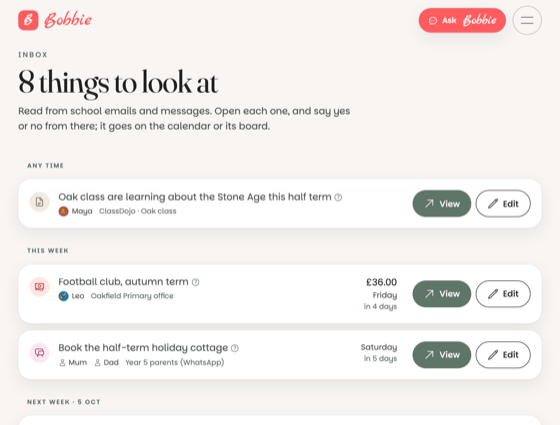
The next school email shows on your Integrations page as "read: 2 things in the Inbox to check", and the things it found wait in your Inbox for a tap. Mail from the school waits for you; mail from someone in your own household goes straight onto the calendar.
If you would rather not forward at all, there is a simpler door: give the school your Bobbie address as your email, and everything they send lands with Bobbie directly. See your Bobbie address.
What is really happening
Gmail's forwarding is a copy made by Google's servers, so it runs even when your phone is off. Nothing is read from your Gmail by Bobbie; only what your rule sends. Bobbie never has your Google password, and you can turn the rule off in Gmail at any time. When the email arrives, the receiving server checks it really came from the school (the same checks your bank's email goes through), and only then does Bobbie read it.
Questions people ask
- Will the school's emails disappear from my Gmail?
- No. Forwarding sends a copy. The original stays in your inbox exactly as it was, read or unread, and you can carry on using Gmail as before.
- Why does Gmail need a code?
- Gmail will not forward your mail to an address that has not agreed to receive it, which protects you from someone forwarding your mail elsewhere. Bobbie receives the code and shows it to you so you can prove the address is yours.
- Can I do this in the Gmail app on my phone?
- Not yet. Google only allows forwarding and filters to be set up in Gmail on a computer. Once it is set up it works everywhere, phone included.
- The school uses more than one address. Do I need a filter for each?
- One filter with the school's domain (everything after the @) catches all of them. If the school writes from a system like ParentMail, make a second filter for that sender, or give that system your Bobbie address directly.